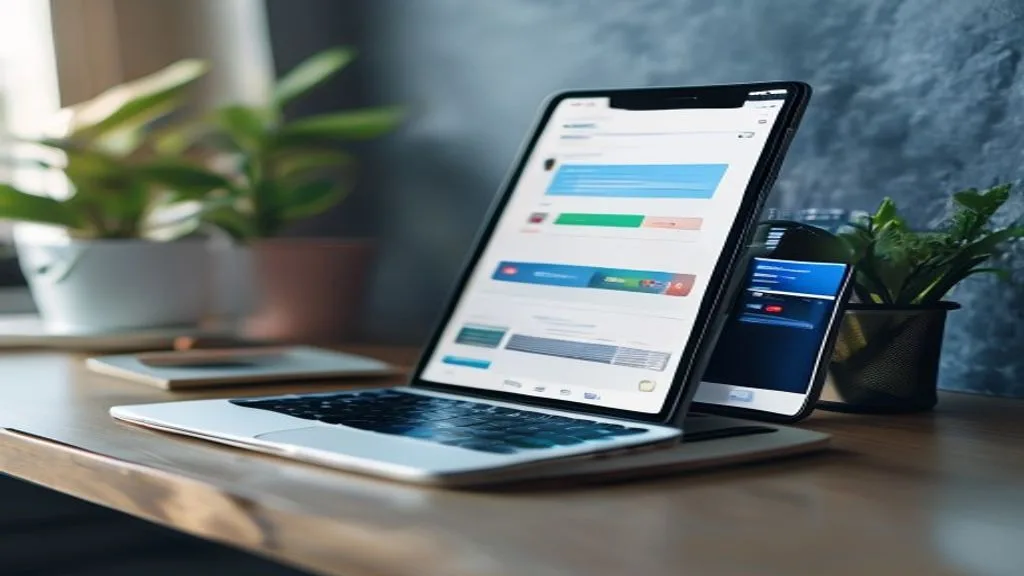
Mobile apps can turn your phone from a distraction into a productivity powerhouse—but only if you choose the right ones and set them up thoughtfully. The wrong apps create clutter; the right ones disappear into your workflow, handling tasks before you even think of them. This guide will help you pick, organize, and use mobile apps so they work for you, not against you.
Choosing the Right Apps
Not all apps are created equal. Some dazzle with features but bog you down with complexity; others do one thing exceptionally well. Before downloading anything, focus on these key considerations to make smart choices.
Start with the task, not the tool. Are you trying to manage your schedule, collaborate with a team, automate repetitive tasks, or track habits? Write down the specific problem, then look for apps that address it directly. Avoid "Swiss Army knife" apps unless you genuinely need multiple functions in one place.
Once you’ve narrowed your options, compare them side by side. Focus on these key areas:
| Feature | What to Look For |
|---|---|
| Sync | Works across devices with fast, reliable syncing |
| Offline Access | Functions without internet, syncs changes later |
| Integrations | Connects with tools you already use |
| Privacy | Minimal data collection with encryption options |
| Cost | Clear pricing with no hidden subscriptions |
For example, if choosing a note-taking app, Evernote offers robust organization but requires a subscription, while Simplenote is free and minimalist but lacks formatting. Pick based on your needs, not hype.
App store ratings can be misleading. Instead of relying on stars:
- Sort reviews by "Most Critical" to see common complaints
- Look for reviews from users with similar needs
- Check independent tech sites for unbiased opinions
Avoid apps that haven't been updated in over a year—they're likely abandoned.
Building Productive Workflows
Some tasks are better suited for mobile apps than others. Here's where they shine and how to use them effectively:
Mobile apps excel at capturing tasks on the go. Instead of scribbling notes, use apps like Todoist or Microsoft To Do for simple lists, TickTick for tasks with deadlines, or Notion for complex projects. Set up recurring tasks and location-based reminders to automate your routine.
For teamwork, mobile apps keep everyone aligned without requiring a laptop. Slack or Microsoft Teams handle messaging, Trello or Asana track projects visually, and Google Docs enables collaborative editing. Enable notifications only for mentions or direct messages to avoid distraction.
Mobile apps can handle repetitive tasks for you. Use IFTTT or Zapier to automate workflows like saving email attachments to Dropbox. Try Shortcuts (iOS) or Tasker (Android) for custom automations like texting your spouse when you leave work. Start with simple automations like saving receipts or silencing your phone during meetings.
Turn idle time into productive sessions with apps like Duolingo for language learning, Notability for handwritten notes, or Canva for quick designs. Download content for offline use to make the most of commutes or waiting time.
Setting Up for Success
The key to productivity with mobile apps is simplicity. Here's how to set them up effectively:
Begin with one or two apps that solve your biggest pain points. Master these before adding more. Each new app should justify its place on your home screen.
A cluttered home screen is a productivity killer. Try this setup:
- Dock: 4-5 essential daily apps
- First Page: Minimal layout with folders for "Work," "Finance," etc.
- Second Page: Less frequently used apps
- App Library: Hide everything else
Disable notifications for non-essential apps. If an app constantly demands attention, ask whether it's helping you or you're helping it.
Tailor your apps to fit your workflow:
- Add widgets for calendar, tasks, or notes
- Use app shortcuts to jump to specific features
- Set up voice commands for hands-free operation
For example, add a Google Calendar widget to see your schedule without opening the app.
Prevent data loss by ensuring your apps:
- Sync across devices with cloud services
- Backup regularly to iCloud, Google Drive, or Dropbox
- Allow data export for important information
For sensitive data, enable two-factor authentication and use apps with end-to-end encryption.
Every few months, audit your apps:
- Delete apps unused for 30+ days
- Unsubscribe from unnecessary services
- Update remaining apps for security
Ask: Does this app save me time, or does it waste it?
Avoiding Common Pitfalls
Even with the best intentions, it's easy to fall into these traps when using mobile apps for productivity:
Every app you add is another potential distraction. Stick to the essentials and resist downloading every "must-have" app you see. Many apps request unnecessary permissions—review and disable anything excessive in your phone's settings.
If you have 50+ apps on your home screen, you're wasting time scrolling. Use folders or search to find apps instantly. App updates include security patches and performance improvements, so enable automatic updates or check weekly.
If you rely on an app for productivity, ensure it works offline. Test it on airplane mode before you actually need it.
Practical Implementation
You don't need a dozen apps to be productive. Pick one area where you're consistently losing time or focus and fix that first. Ask: What's the simplest tool that could solve this? A to-do list app? A note-taking app? Start there.
Syncing should save time, not create more work. Set up automatic sync but turn off non-essential notifications. Keep only actionable alerts like deadline reminders or collaborator comments.
The dock is for the 3-4 apps you use daily. Group others by purpose in folders like "Capture," "Plan," "Create," and "Learn." If an app isn't in a folder or the dock, consider deleting it.
Give any new tool a week of real use:
- Day 1-2: Set it up and explore features
- Day 3-5: Use it for actual work
- Day 6-7: Decide if it makes your life easier
If it's not helping, move on. The best tools disappear into your workflow.
When to Let Go
Some apps promise productivity but add friction. Quit if:
- You spend more time managing the tool than doing work
- It requires constant tweaking
- You're using it out of guilt
- You only use 10% of the features
Productivity tools should reduce decisions, not create more.
Before downloading another app, ask: Will this save me more time than it costs? If the answer isn't an immediate yes, don't download it. Apply the same rule to existing apps—if deleting one takes longer than 30 seconds, it's a candidate for removal.
The tools that stick around aren't the ones with the most features—they're the ones that disappear. Physical tools often outperform apps because they force simplicity. A notebook doesn't sync to the cloud, so you keep it with you. Index cards don't have priority tags, so you write the most important thing first.
The most productive people aren't those with the most tools—they're those who protect their focus. For one week, treat every new tool like a guilty pleasure. If you wouldn't let a stranger move into your spare room, don't let an app move into your home screen.
"The greatest productivity tool ever invented is the word no."
Your attention is finite. Spend it on the work, not the tools.